
Snowflake CoWork – 3 New Features Every Analyst Should Know


Intro
CloudHive is bringing together experts from across the Snowflake community to share hands-on experience, technical insights and different perspectives from the field.
In this latest article in the series, I’m taking a closer look at Snowflake CoWork and three features I think analysts should know about. In a previous article, I covered the wider Cortex portfolio, including Cortex Agent and the tools that sit behind it.
CoWork, previously known as Snowflake Intelligence, can look like little more than a wrapper around Cortex Agent. In practice, there are a few features that make it worth treating as a product in its own right, particularly for analysts working directly in Snowflake.
What is Snowflake CoWork?
Snowflake CoWork started as an interface for conversational interactions with Snowflake data. If you’ve been on this ride for a while, you can probably recall its previous name: Snowflake Intelligence. The primary benefit for a long time has been a simple ChatGPT-like UI with access to Cortex Agents to generate insights on datasets connected through semantic search and text2SQL. With the development of the agents’ capabilities beyond producing SQL code and searching/summarizing text, CoWork evolved into a platform with a deep understanding of the data, as well as the extra ability to act on it. The current list of its features is juicy: skills, plugins and custom tools, extended thinking and more. So today, I pick my three favorite features as an analyst persona.
What is Snowflake CoWork Deep Research?
If I had to choose only one feature every analyst should try in Snowflake CoWork, it would be Deep Research. Deep Research is the ultimate helper for answering the why about your data. Don’t take my word for it; you should really try it. Throw a complex, non-trivial question about your data at CoWork and activate this feature behind the + icon in the message bar.
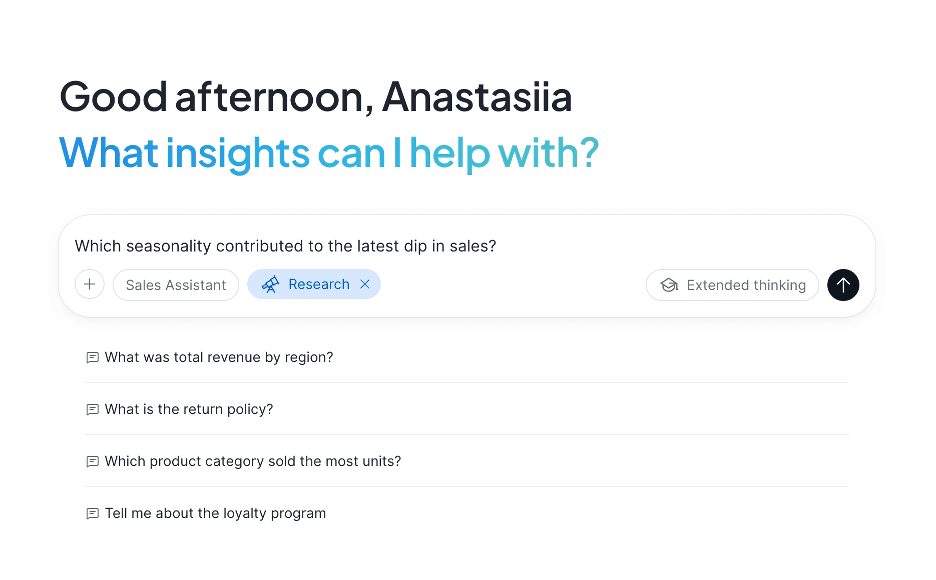
Activate Deep Research Mode in Snowflake CoWork to investigate complex topics
Behind the scenes, Deep Research will decompose your question into a set of atomic questions it needs to answer and run these investigations in parallel using sub-agents. These questions can be answered by your structured or unstructured data, as well as external context. In the end, the results are combined into a single report with citations and references provided.
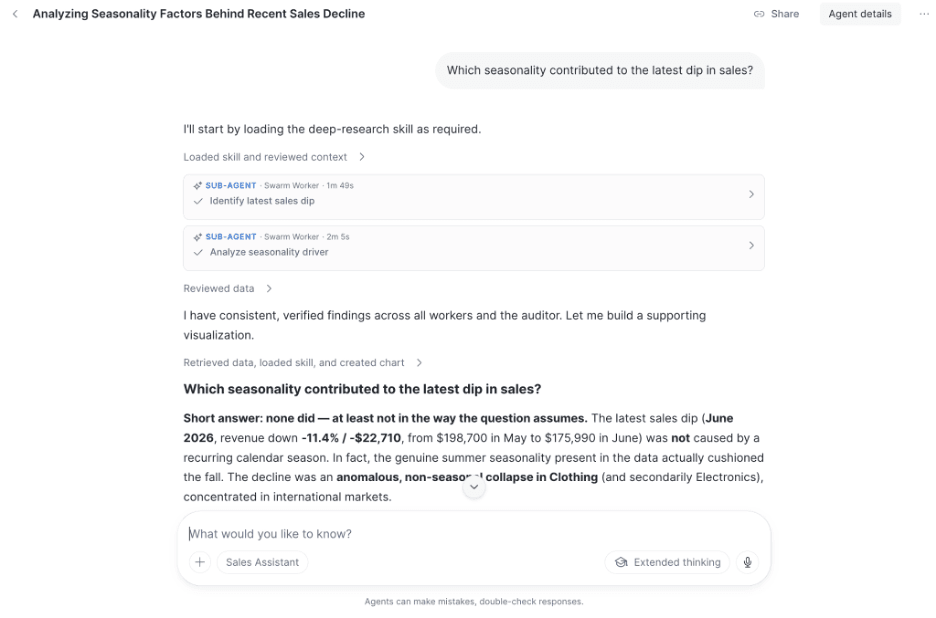
Deep Research spun two sub-agents to address a question from multiple angles
As a starting point, such reports can support the broader research done by an analyst. Not only do they supply ample food for thought for curious minds, but they also offer extra options for further discovery. Among those options is our next hero of this article: Visualizations.
How do Visualizations work in Snowflake CoWork?
If you work with Snowflake CoWork, chances are high that a SQL query will fire to answer some of your questions. Based on the query type, CoWork determines whether the result can be shown as a chart and presents it in the output section. It supports most Vega-Lite chart types: bar, line, pie and scatter, plus area charts, heatmaps, box plots, dual-axis and layered charts, faceted small-multiples, error bars and text annotations. Geographic maps are the notable exception. CoWork defaults to the most likely candidate for an effective visualization. Each viz comes with an option to download it as a .png file, or the underlying table as .csv or .tsv.
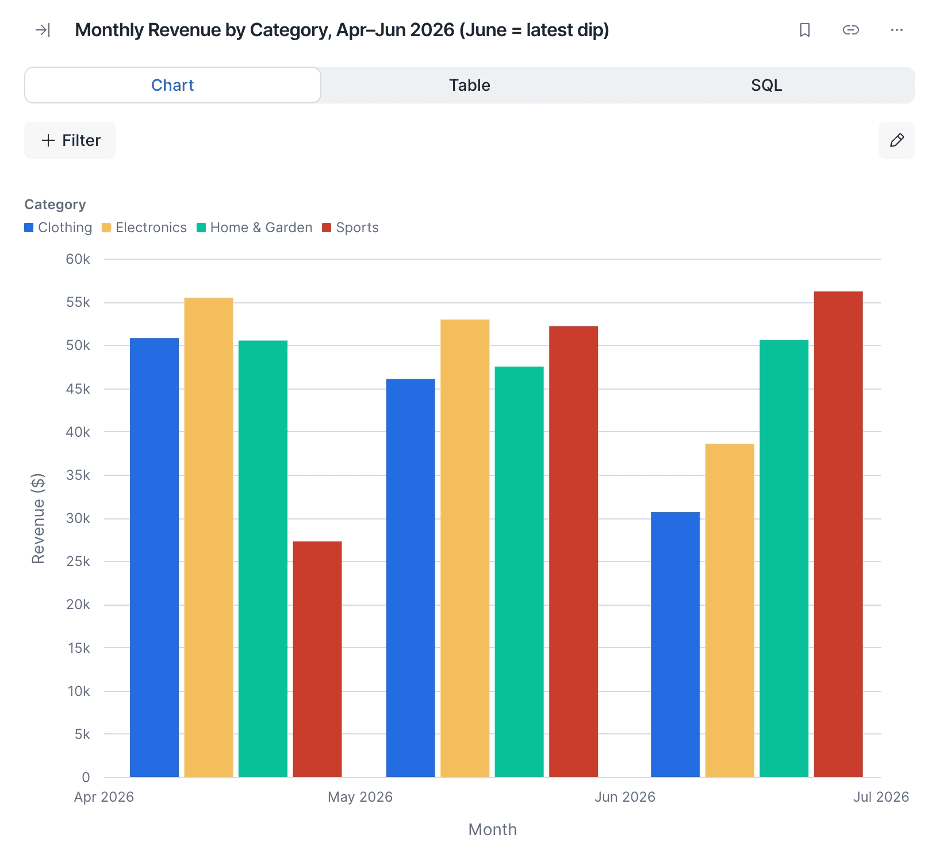
In-built visualization in the Deep Research output report supports the main story of the findings
But what if I told you this is not even the best part? You can edit the chart inside the conversation, customize the type, change the axes, labels, calculations and colors. All within the same window of the CoWork UI! This feature is available for bar, line, pie, and scatter charts. For the other types of charts, simply ask Snowflake CoWork and it will edit the chart for you. And there is more to come: the ability to define customizations at the agent or semantic view level is in Preview at the moment of writing this article. With it, you can set the defaults for colors, formatting and fonts according to your preferences or brand guidelines. Moreover, another feature called “Visualization policies” lets you define conditional chart rules and is also in Preview. These previews set the direction for this area, and the analytical crowd that thrives on visuals has plenty to look forward to.
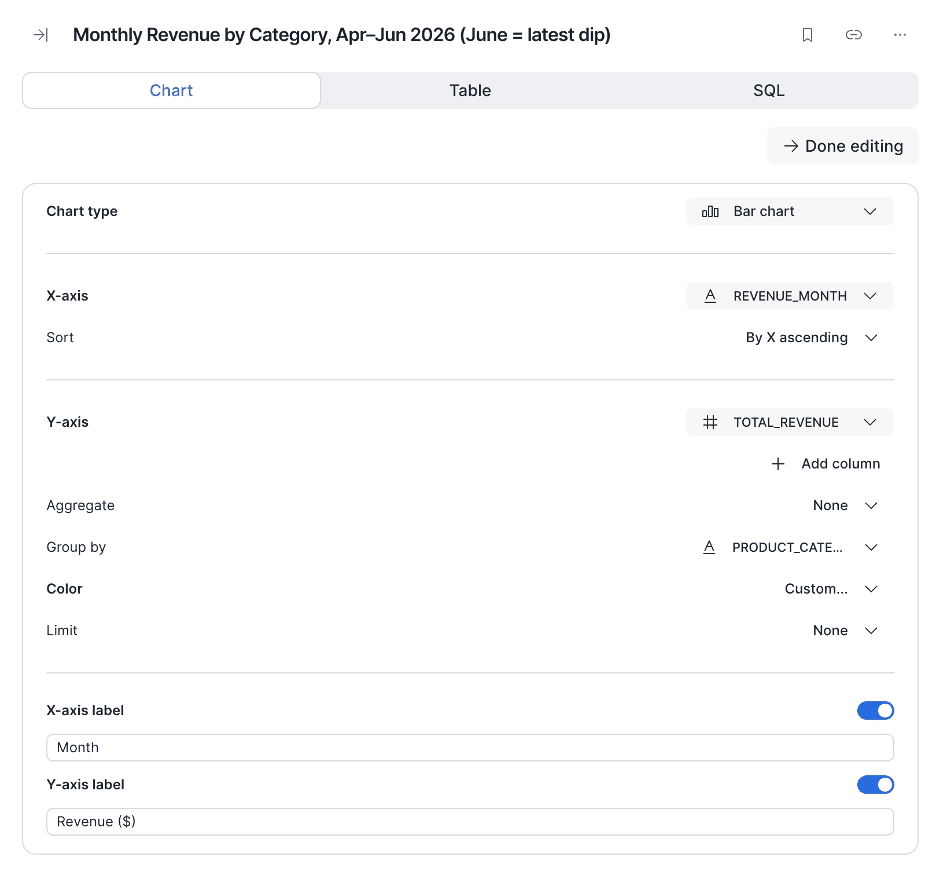
Customization options of the viz are available directly in the Snowflake CoWork UI
And with this, I am sure you can imagine a day, coming sooner rather than later, when Deep Research reports or elements of CoWork chats, such as visualizations and tables, are shared across the organization as standalone entities, not just screenshots and printouts. What would you say if I told you that CoWork already has you covered? Enter stage: Artifacts.
What are Snowflake CoWork Artifacts?
Artifacts are persistent, live references to a chart or a table, aka no more screenshots and copy-pasting static data. Artifacts let you save the entities produced during Snowflake CoWork interactions and share them across your organization. But if you ask me, the best part is this: they are refreshable and follow the RBAC of the recipient. So unlike screenshots or exports, there is no risk of accidentally sharing sensitive data, and the data never leaves the Snowflake RBAC perimeter.
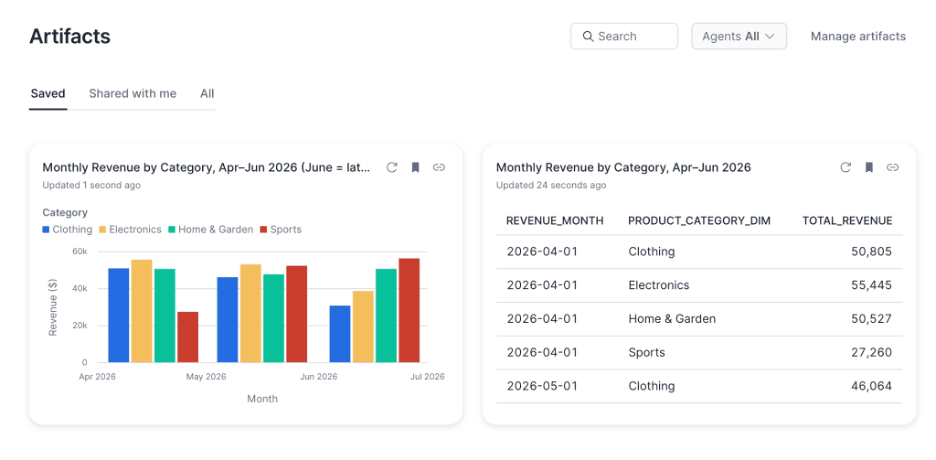
Currently supported artifacts include visualizations and tables
One of my favorite features as an analyst is the option to refresh the data in the artifacts. This opens up a whole range of future use cases! Looking at Snowflake’s list of known limitations for artifacts, organizing items into folders and collections is not currently possible, but I’ve got my eyes on this one.
How much does Snowflake CoWork cost?
Snowflake CoWork is billed on an AI Credits basis per million tokens. For example, for Claude Sonnet 5 at the moment of writing this article, the Credit Consumption table quotes 1.30 AI Credits for input, 6.50 AI Credits for output, and an additional 1.625 AI Credits for cache write and 0.13 AI Credits for cache read. In addition to the agent itself, the underlying services and tools are included in the billing, which in turn may incur warehouse and storage costs. For the details of the costs for many tools from the Cortex suite, I recommend my previous article. The details are available in the SNOWFLAKE_INTELLIGENCE_USAGE_HISTORY view, which kept the old Snowflake Intelligence name through the rebrand. Or, for the CoCo fans out there, invoke the /cost-intelligence skill and enjoy!
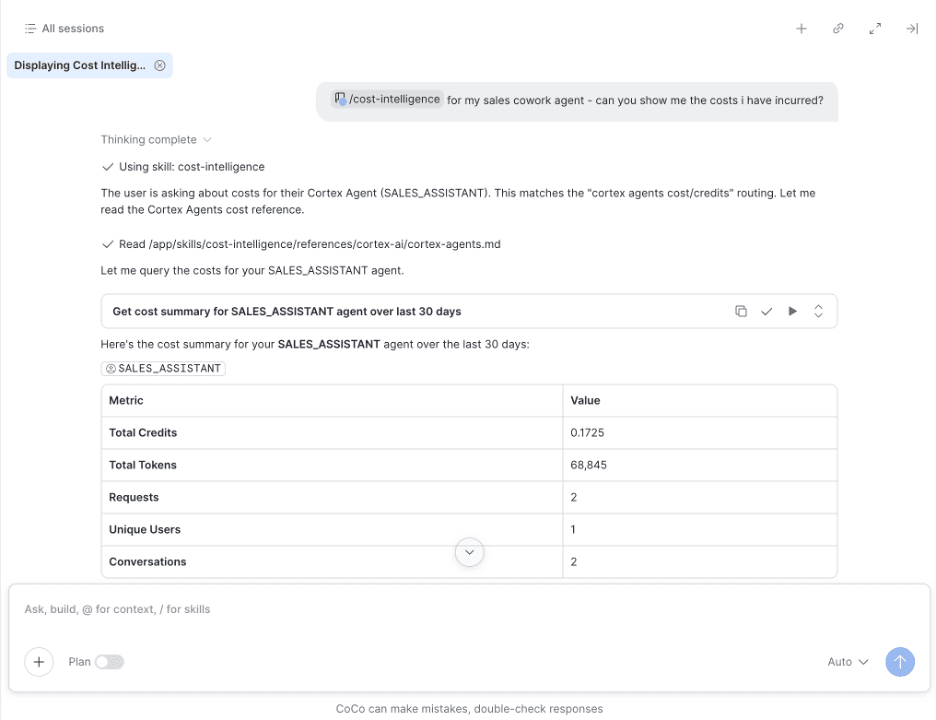
CoCo is displaying the result of the cost breakdown for the CoWork demo agent
How can I control Snowflake CoWork costs?
A great option to control the Snowflake CoWork cost is to set up a resource budget at the account level, or a shared resource budget on a subset of users. Both methods use a tag-based approach: in the resource budget scenario, tags are applied to the CoWork object itself, while in the shared resource budget scenario the tags are applied to the users.
Below is an example of setting up a resource budget. First, create a tag for tracking the budget:
CREATE TAG IF NOT EXISTS COWORK_COST_CENTER
ALLOWED_VALUES 'org-level'
COMMENT = 'Tag for CoWork budget tracking';
Next, make sure the CoWork object is created in your account:
CREATE SNOWFLAKE INTELLIGENCE SNOWFLAKE_INTELLIGENCE_OBJECT_DEFAULT;
SHOW SNOWFLAKE INTELLIGENCES;
After that, apply the tag to the CoWork object:
ALTER SNOWFLAKE INTELLIGENCE SNOWFLAKE_INTELLIGENCE_OBJECT_DEFAULT
SET TAG COWORK_COST_CENTER = 'org-level';
Then, create a budget and attach the tag as its scope:
CREATE SNOWFLAKE.CORE.BUDGET COWORK_BUDGET();
CALL COWORK_BUDGET!SET_SPENDING_LIMIT(10);
CALL COWORK_BUDGET!SET_RESOURCE_TAGS(
[
[(SELECT SYSTEM$REFERENCE('TAG',
'AGENT_DEMO_DB.DEMO.COWORK_COST_CENTER',
'SESSION',
'applybudget')),
'org-level']
],
'UNION');
CALL COWORK_BUDGET!SET_NOTIFICATION_THRESHOLD(80);
If you wish to revoke access to CoWork when the spending limit is reached, add a CUSTOM_ACTION:
CREATE OR REPLACE PROCEDURE AGENT_DEMO_DB.DEMO.SP_REVOKE_SI_ACCESS(
SI_NAME STRING, ROLE_NAME STRING
)
RETURNS STRING
LANGUAGE SQL
AS
BEGIN
EXECUTE IMMEDIATE 'REVOKE ROLE SI_' || SI_NAME || '_ROLE FROM ROLE ' || ROLE_NAME;
RETURN 'Access revoked for ' || SI_NAME;
END;
CALL COWORK_BUDGET!ADD_CUSTOM_ACTION(
SYSTEM$REFERENCE('PROCEDURE',
'AGENT_DEMO_DB.DEMO.SP_REVOKE_SI_ACCESS(STRING, STRING)'),
ARRAY_CONSTRUCT('SNOWFLAKE_INTELLIGENCE_OBJECT_DEFAULT', 'ROLE_NAME'),
'ACTUAL',
100);
Similarly, to reinstate access at the start of the next budget cycle, add another CUSTOM_ACTION:
CREATE OR REPLACE PROCEDURE AGENT_DEMO_DB.DEMO.SP_REINSTATE_SI_ACCESS(
SI_NAME STRING, ROLE_NAME STRING
)
RETURNS STRING
LANGUAGE SQL
AS
BEGIN
EXECUTE IMMEDIATE 'GRANT ROLE SI_' || SI_NAME || '_ROLE TO ROLE ' || ROLE_NAME;
RETURN 'Access reinstated for ' || SI_NAME;
END;
GRANT USAGE ON PROCEDURE AGENT_DEMO_DB.DEMO.SP_REINSTATE_SI_ACCESS(STRING, STRING)
TO APPLICATION SNOWFLAKE;
CALL COWORK_BUDGET!SET_CYCLE_START_ACTION(
SYSTEM$REFERENCE('PROCEDURE', 'AGENT_DEMO_DB.DEMO.SP_REINSTATE_SI_ACCESS(STRING, STRING)'),
ARRAY_CONSTRUCT('SNOWFLAKE_INTELLIGENCE_OBJECT_
DEFAULT', 'ROLE_NAME')
);
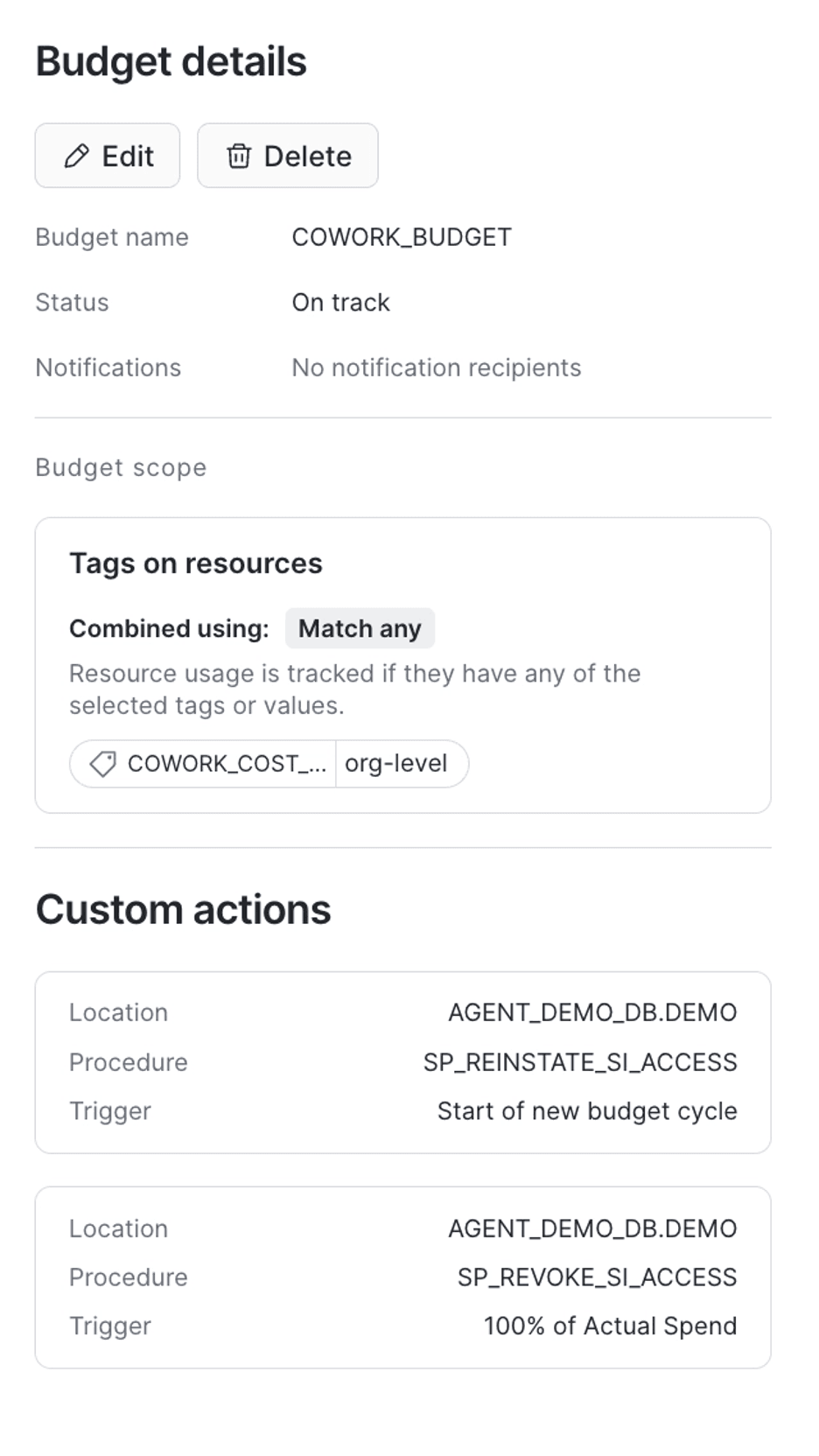
Snowflake CoWork Resource Budget is set up and ready
Conclusion
Snowflake CoWork has undergone a transformation from “simply a UI for Cortex Agent” into a separate ecosystem of agentic features deeply embedded in your Snowflake data. To anyone working as an analyst and beyond, I highly recommend exploring its powerful capabilities as an aid in day-to-day work and a source of meaningful AI augmentation. Snowflake CoWork has an incredibly low barrier to entry, with rewarding results in a short time.